
MyHyundai Bluelink
App feature: Waypoints in Send to Car POI (point of interest)
Role
UI/UX Designer
Skills
UI/UX improvement, user acceptance testing, joint integration testing, QA
Year
2016
App Reach
500k+ users
MYHYUNDAI BLUELINK APP
The MyHyundai Bluelink app provides users with access to owner resources, service scheduling, and remote connectivity with Bluelink-enabled vehicles through mobile devices and smartwatches. I contributed by refining the UI and UX across the platform, enhancing usability and delivering a more streamlined user experience.
WHAT’S THE POINT?
MyHyundai users wanted the ability to add waypoints in between their start and end routes.
REQUIREMENTS
Allow users to add, reorder and delete up to two waypoints in-between their start and end routes.
The feature is only available in Send to Car (find a destination in the app, send it to the vehicle’s navigation system)
CHALLENGES
API limitations - I could not alter the UX and was only able to use similar interactions in the current maps feature.
Different timezones - Collaborated with a development team based in China.
“Easy-to-use and easy to navigate.”
SUCCESS MEASUREMENTS
We leveraged Flurry, a mobile analytic platform, to test user paths and quantitive analytic features. I worked with the business analyst team to incorporate tagging of specific user actions to get a usage rate of 64%.
I worked in collaboration with our overseas devs, business analysts, PM, QA and end users to ensure the app functionality followed the business requirements. Hyundai Motor America and Hyundai Korea had to work in sync to deploy the feature to both markets.
Interaction Flow
〰️
Interaction Flow 〰️
-
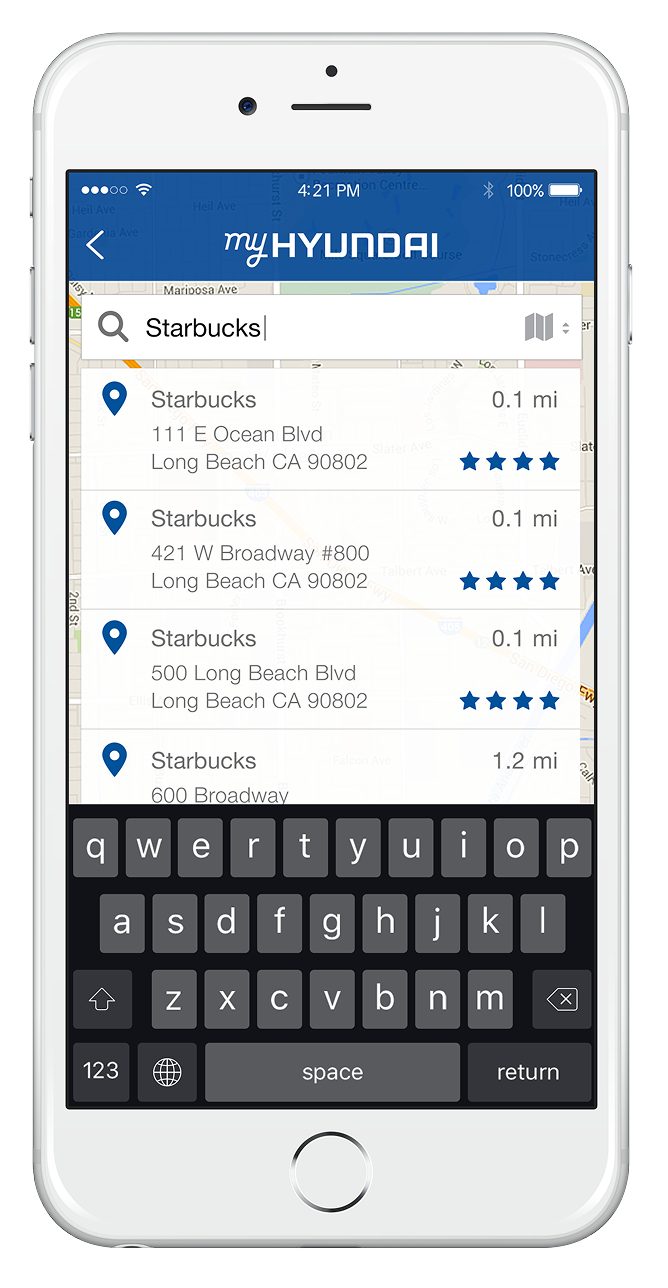
1/ Search for a destination
-
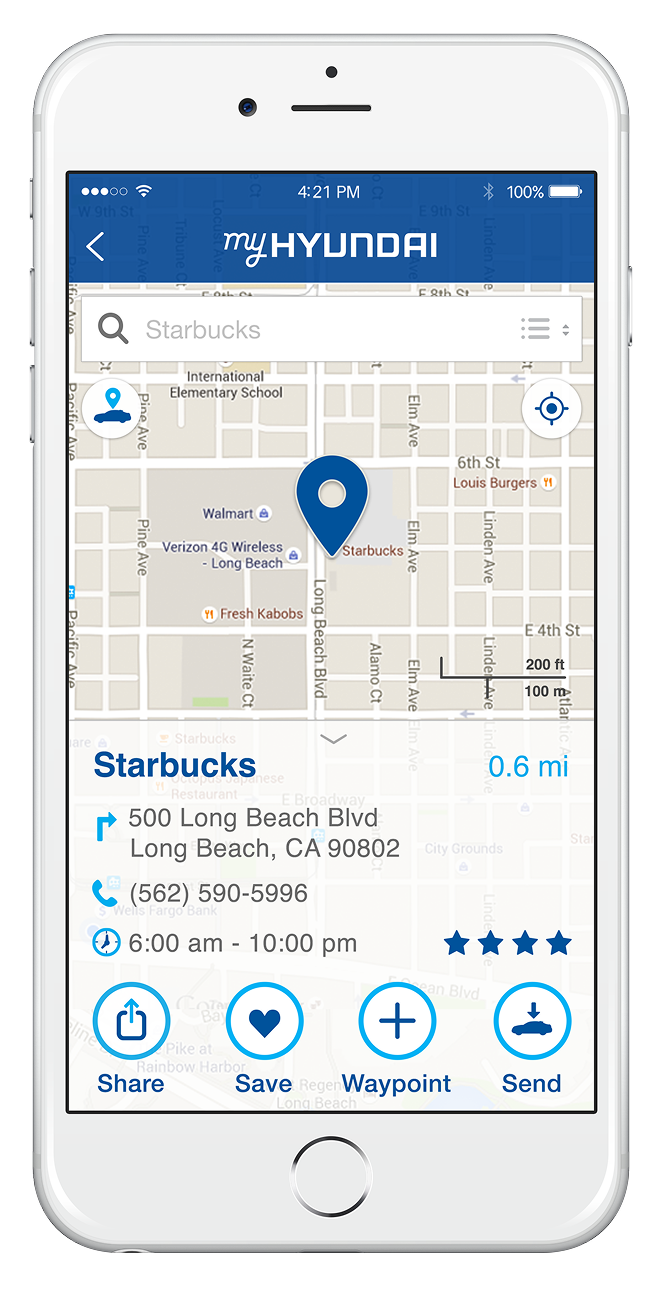
2/ Tap add waypoint
-
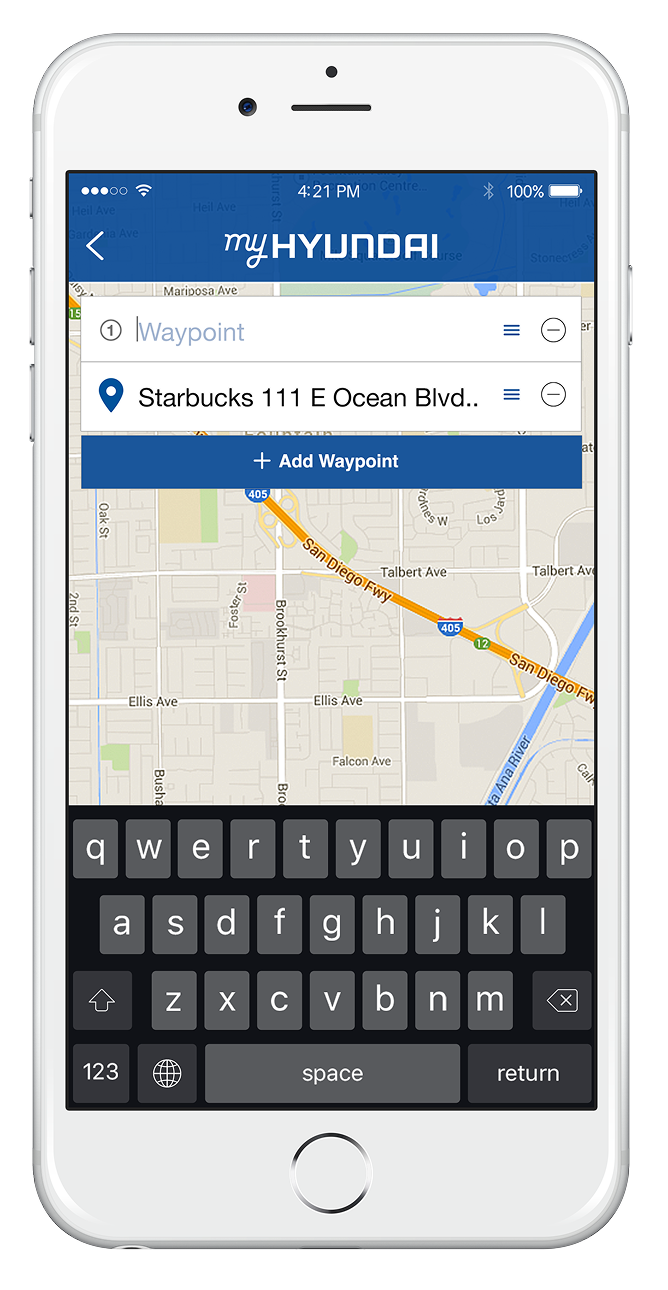
3/ The first waypoint field appears
-
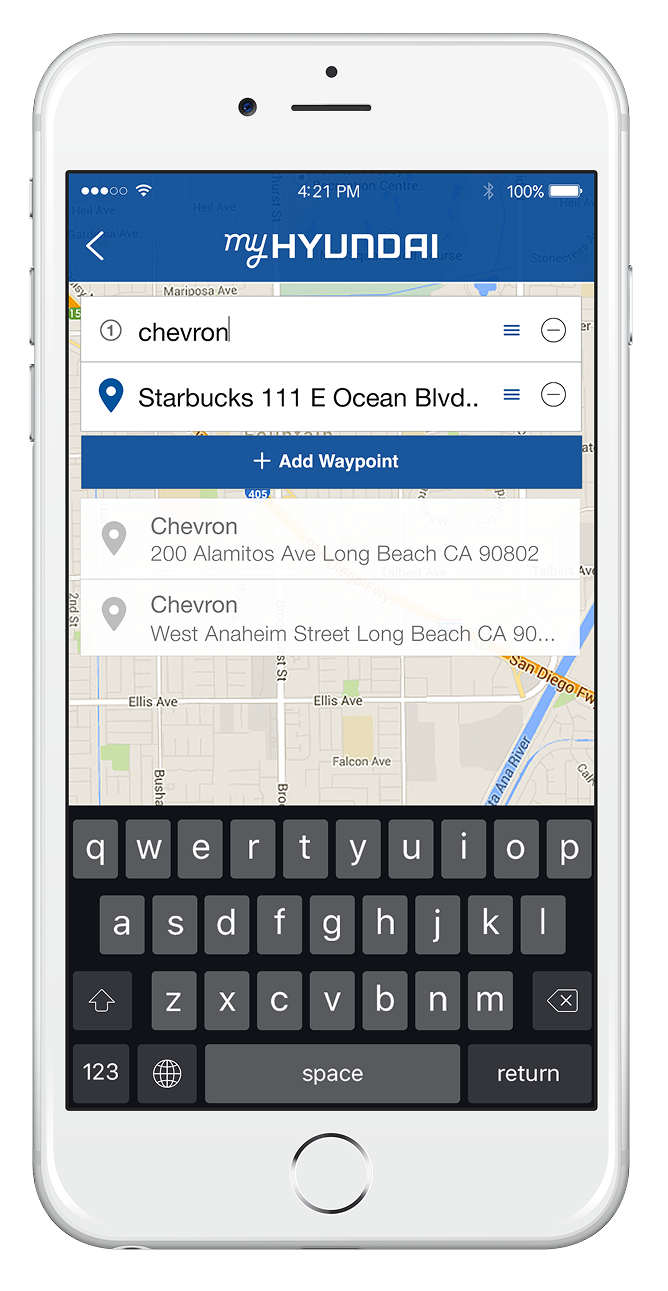
4/ Enter the first waypoint
-
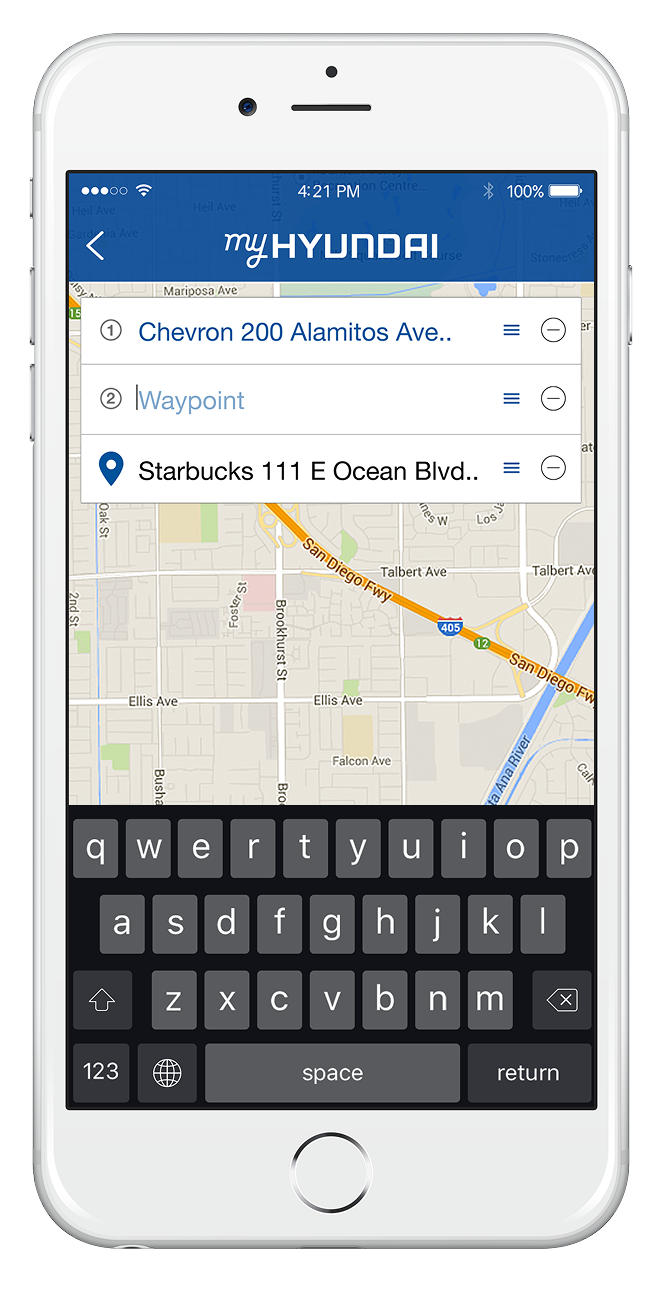
5/ The second waypoint field appears
-
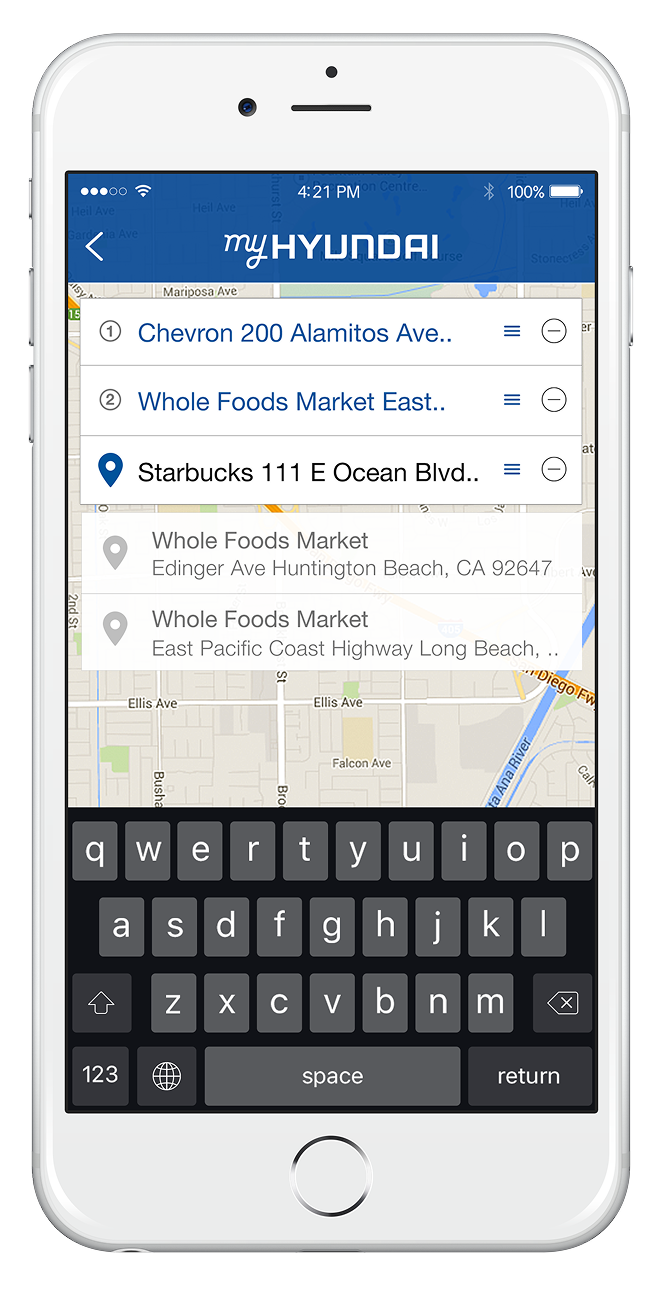
6/ Select the second waypoint
-
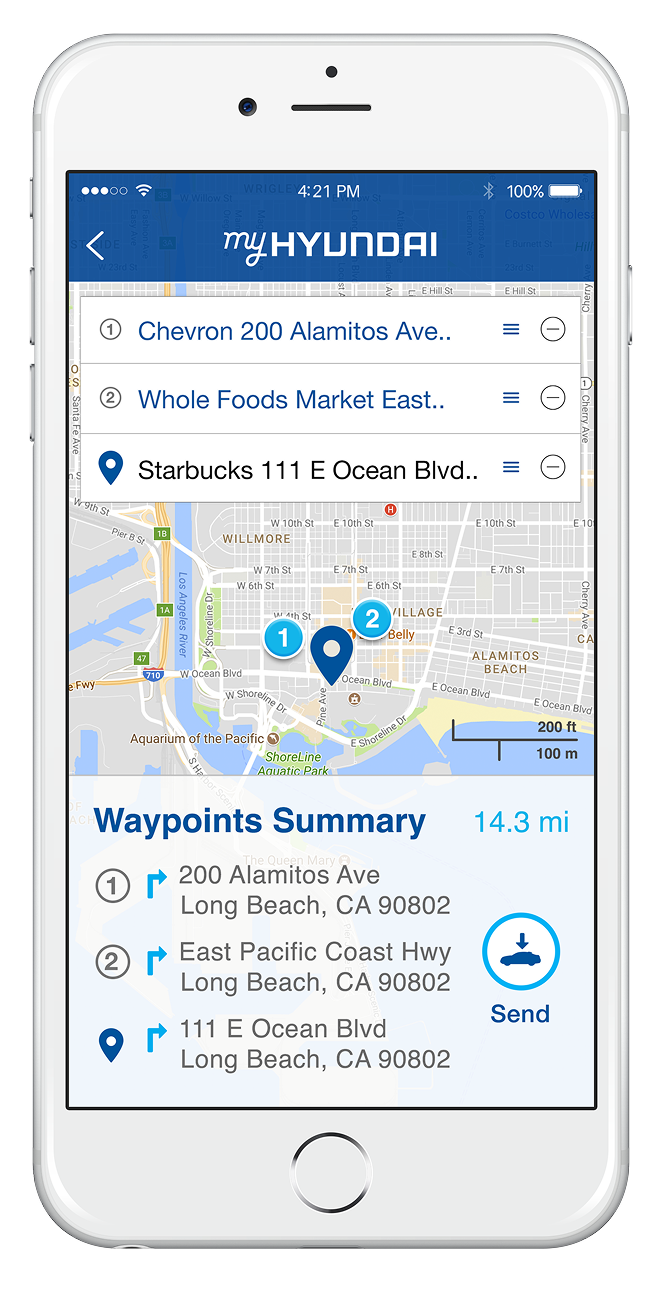
7/ Review the summary, send it to your car
-
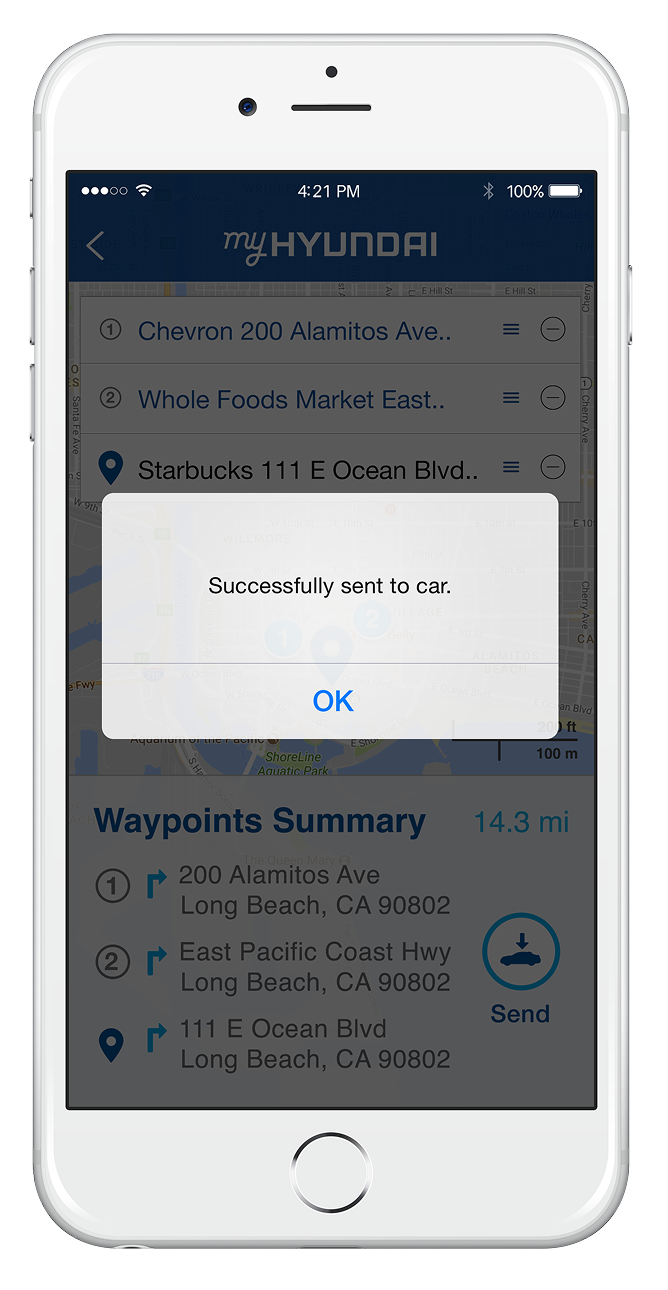
8/ Sent to car confirmation
Viewing Waypoint Detail
📍
Viewing Waypoint Detail 📍
-
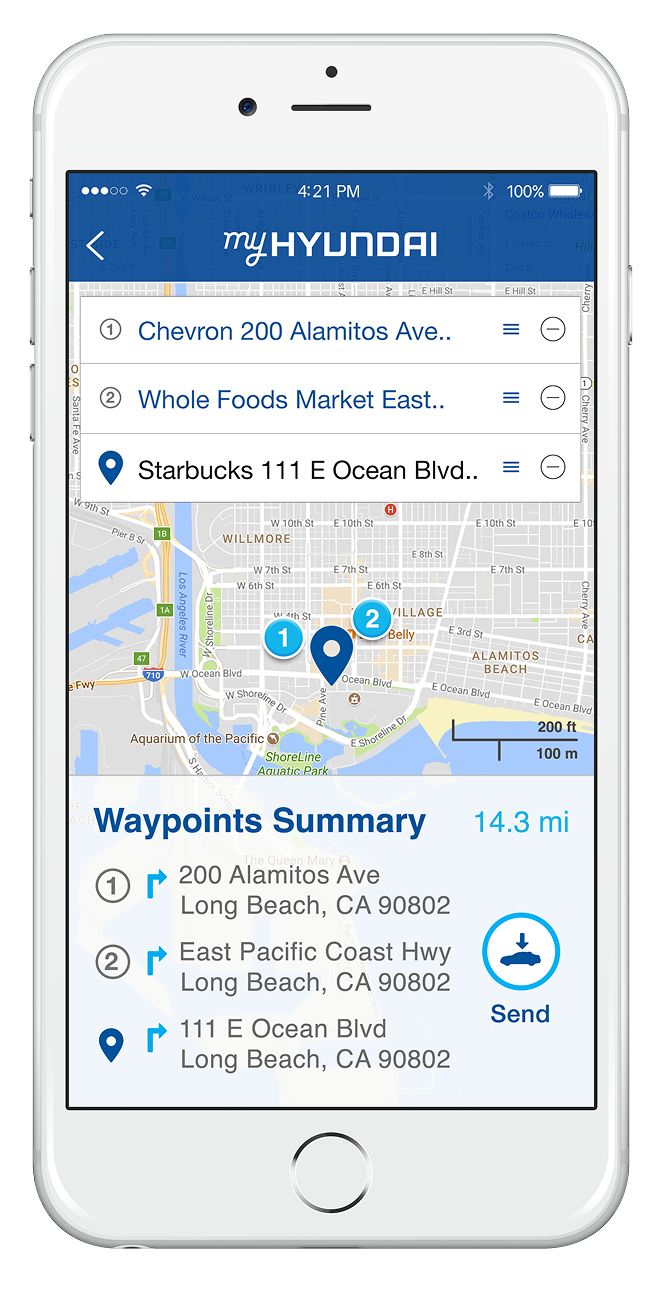
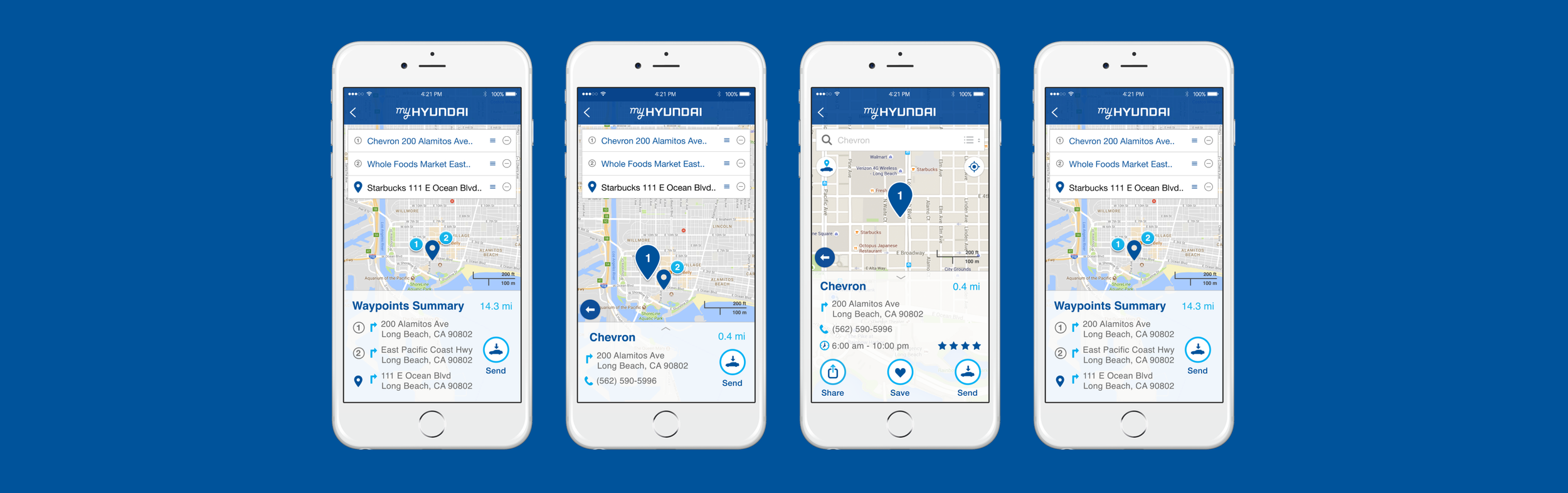
To view a waypoint's detail, tap on the pin or icons
-
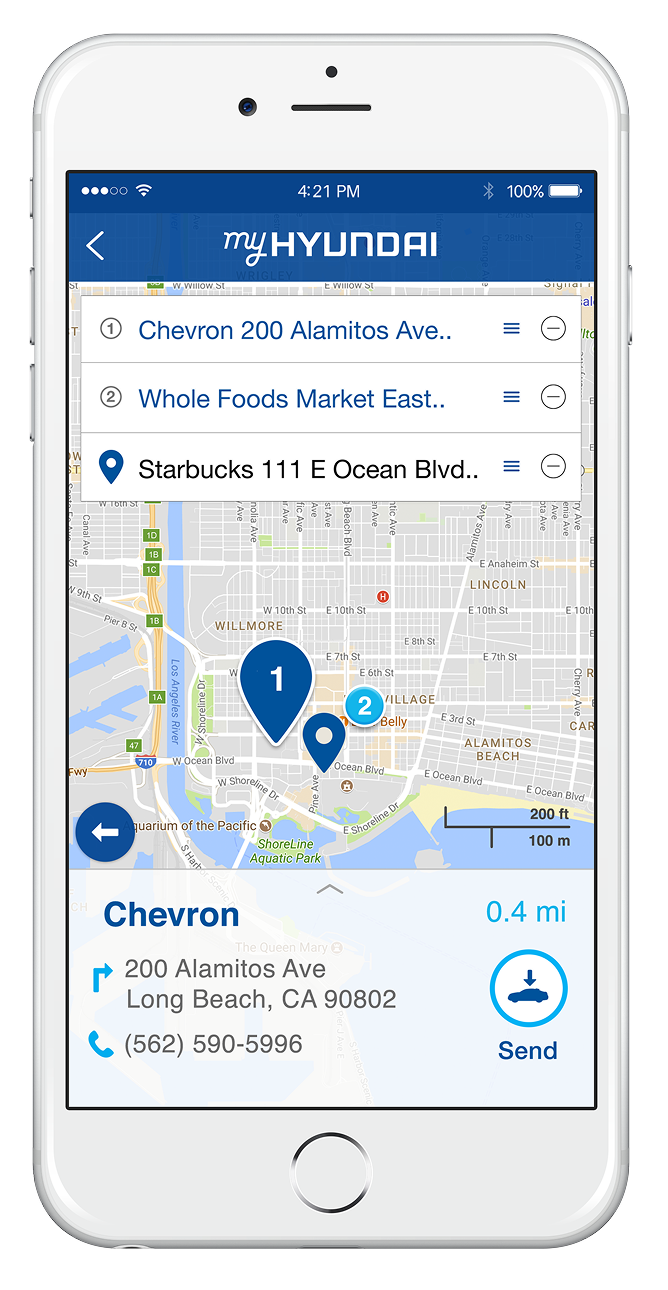
To expand the detail, tap on the up arrow
-
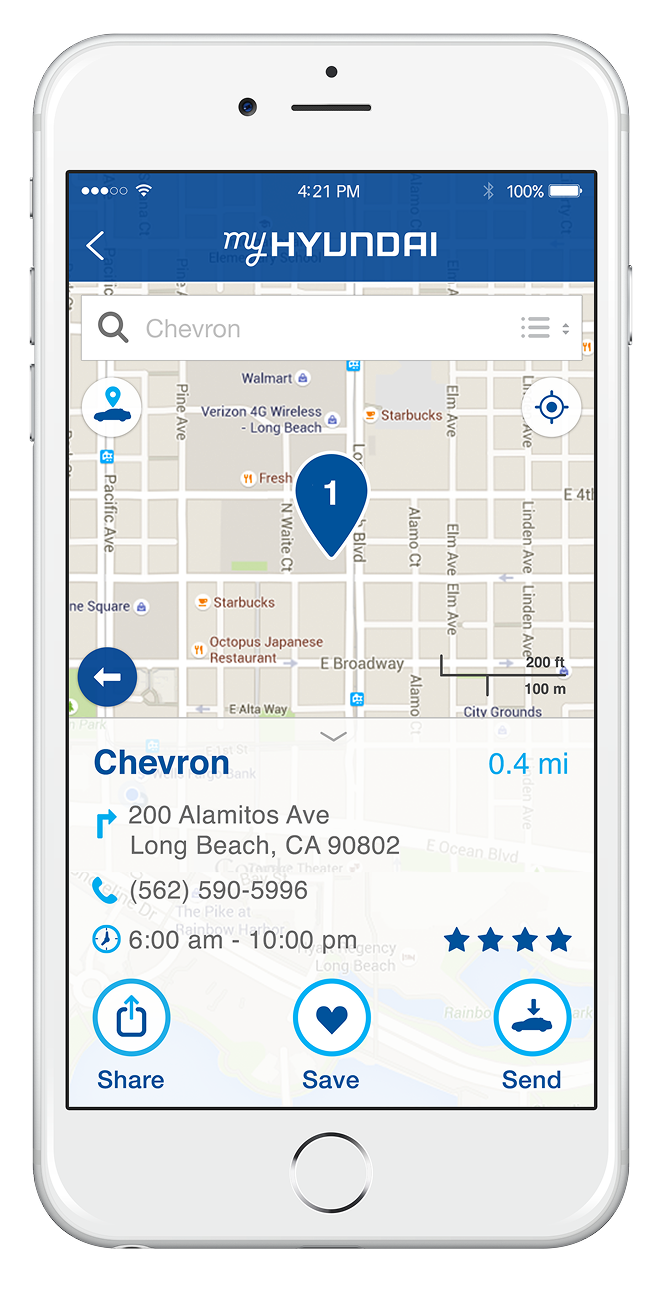
Tap the back button on the map to go back to the Waypoints Summary
-
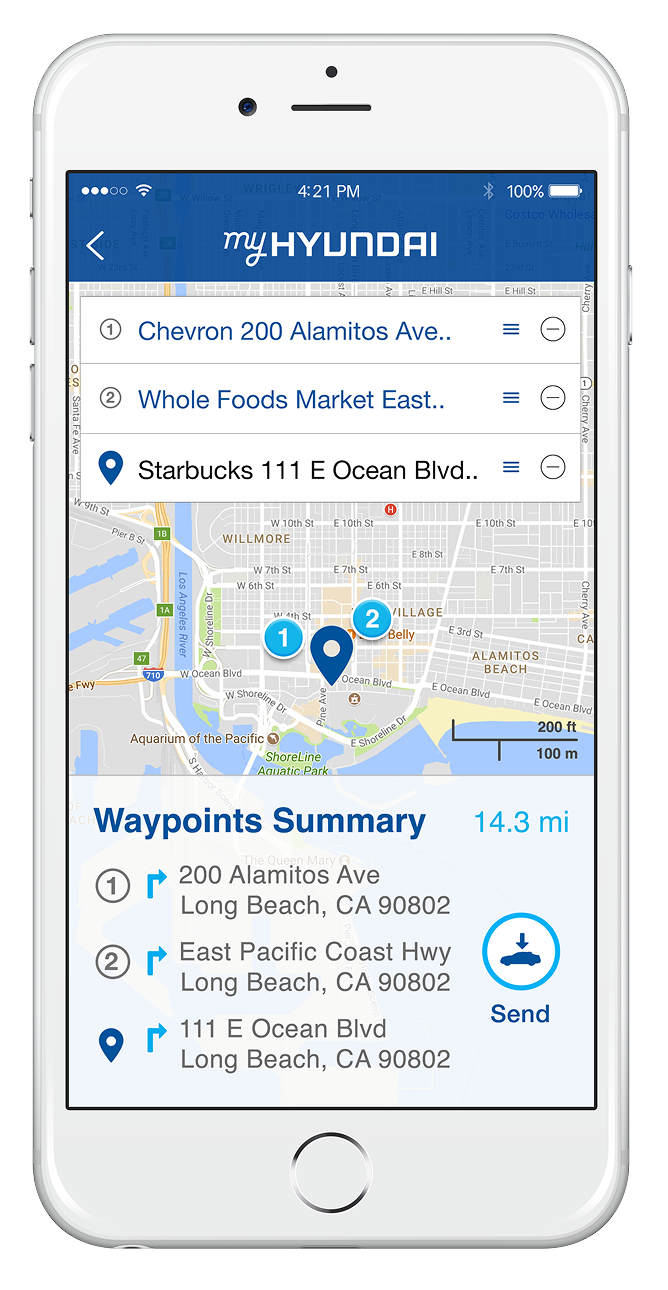
Waypoints Summary